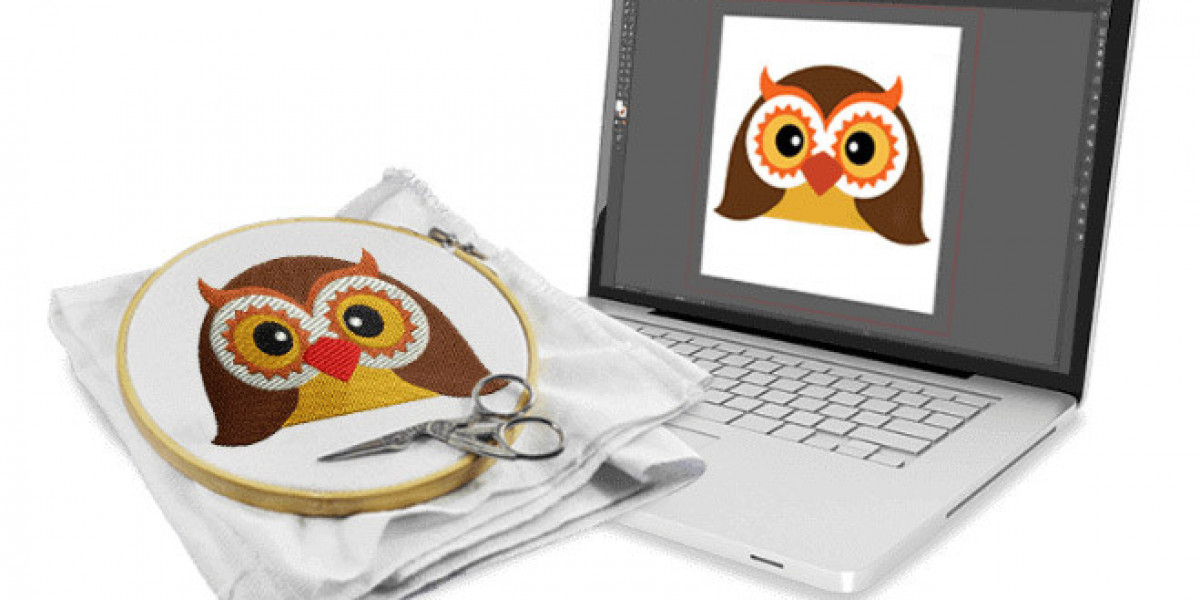
You have a design in DST format. Your friend's machine needs PES. Another client uses VP3. You are stuck in the middle, wondering how to make one file work everywhere. This scenario plays out constantly in embroidery shops. The good news is that converting between formats is absolutely possible. The better news is that you have options, from free tools to professional software. Understanding Embroidery File Format conversion saves time, money, and frustration.
Embroidery machines speak different languages. Brother uses PES. Tajima uses DST. Pfaff and Viking use VP3. Melco uses EXP. Getting a design from one format to another is like translation. You want to preserve the meaning while changing the words. Let me walk you through everything you need to know.
Why Format Conversion Matters
Every embroidery machine brand has preferred formats. If you receive a file in the wrong format, your machine either rejects it or stitches it incorrectly. Format conversion bridges that gap.
Common scenarios requiring conversion:
You receive DST files but your Brother machine needs PES
You have a library of older HUS designs you want to use on your new VP3 machine
A client sends PES but your commercial machine reads DST
You need to edit a design but only have the machine file
Understanding conversion helps you work with any file, from any source, on any machine.
Understanding What Conversion Can and Cannot Do
Before we dive into methods, you need realistic expectations about what conversion accomplishes.
Conversion can:
Change the file container (DST to PES, etc.)
Preserve stitch data and color change points
Maintain design dimensions and stitch count
Transfer basic design information
Conversion cannot:
Fix poor digitizing in the source file
Add missing underlay or density settings
Create object data that was never there
Improve stitch quality that was poor to begin with
Think of conversion like translating a book. A good translation preserves the story. But if the original was poorly written, the translation will be too.
File Format Families
Formats often group by software or machine family. Understanding these relationships helps.
Wilcom/Universal formats:
DST (Tajima universal)
EXP (Melco)
PES (Brother) - Wilcom reads/writes all versions
JEF (Janome)
VP3 (Pfaff/Viking)
Brother family:
PES (primary)
DST (reads)
PHC/PEN (older)
Pfaff/Viking family:
VP3/VP4 (modern)
VIP/PCS (older)
HUS (older Viking)
Janome family:
JEF (primary)
JEF+ (newer)
JAN (master format)
Melco family:
EXP (primary)
DST (reads)
Bernina family:
ART (older)
EXP (many models)
PES (home models)
Method 1: Professional Software for Conversion
If you convert files regularly, professional software is worth the investment. These tools handle virtually any format with precision.
Wilcom TrueSizer (Free Option)
Wilcom TrueSizer is a free embroidery file viewer and converter . It supports most major formats including DST, PES, EXP, JEF, VP3, and more.
How to use TrueSizer:
Download and install TrueSizer from Wilcom's website
Open your embroidery file via File → Open
Verify the design looks correct
Go to File → Save As
Choose your desired format from the dropdown
Click Save
Limitations: TrueSizer is for viewing and converting only. It does not edit designs. But for pure conversion, it is excellent and free.
Wilcom EmbroideryStudio (Professional)
For users who need editing alongside conversion, EmbroideryStudio is the industry standard . It supports reading and writing virtually every format.
Key conversion features:
Batch conversion for multiple files
Format-specific export options
Preservation of color data when formats support it
Advanced settings for each format type
Hatch Embroidery
Hatch offers powerful conversion capabilities at a more accessible price point . It supports all major formats and provides excellent preview tools.
Embrilliance
Embrilliance runs on both Mac and Windows, making it ideal for users in mixed environments . It supports format conversion through its various modules.
Method 2: Dedicated Conversion Software
Several programs focus specifically on format conversion.
SewWhat-Pro
SewWhat-Pro is affordable software dedicated to viewing, editing, and converting embroidery files . It supports dozens of formats and offers batch conversion.
How to use SewWhat-Pro:
Open your file
Use the conversion wizard
Select target format
Adjust any format-specific options
Save
Embird
Embird offers modular software where you buy only what you need . The basic Editor plus Format Converter modules handle most conversion needs.
Pulse Ambassador
Pulse Ambassador is a free viewer and converter from the Pulse ecosystem . It supports DST, EXP, and other formats common in commercial production.
Method 3: Online Converters (Use with Caution)
Countless websites offer free instant format conversion. They are convenient but come with risks.
Popular online converters:
Convertio
Aconvert
OnlineConvertFree
WilcomWorkspace
How online converters work:
Upload your file
Select target format
Click convert
Download result
The pros:
No software installation
Works on any device
Often free
Fast for simple files
The cons:
File size limits
Privacy concerns with proprietary designs
Inconsistent quality
May strip metadata
Limited format support
When to use online converters: For personal projects, simple designs, and non-sensitive work where quality is not critical.
When to avoid: For client logos, complex designs, commercial work, or anything where quality matters.
Method 4: Machine-Based Conversion
Some embroidery machines offer built-in format conversion. Check your machine's manual.
Brother machines often read multiple formats and can convert during loading. Tajima machines read DST natively but may accept other formats through built-in conversion.
Limitations: Machine conversion is usually basic. It may not preserve color data or handle complex designs well.
Step-by-Step: Converting DST to PES
Let's walk through a common conversion scenario using free tools.
Using Wilcom TrueSizer:
Step 1: Download and install TrueSizer
Step 2: Launch the program
Step 3: Go to File → Open and select your DST file
Step 4: Verify the design displays correctly. Zoom in to check details.
Step 5: Go to File → Save As
Step 6: In the Save As dialog, change the file type dropdown to "Brother PES (*.pes)"
Step 7: Choose a destination and filename
Step 8: Click Save
Step 9: Open the new PES file in TrueSizer to verify conversion worked
Using SewWhat-Pro:
Step 1: Open SewWhat-Pro
Step 2: File → Open and select DST
Step 3: File → Save As
Step 4: Select PES from format list
Step 5: Adjust any format options (PES version, etc.)
Step 6: Save
Step-by-Step: Converting PES to DST
The reverse conversion follows the same process. Use the same tools, just select DST as the target format.
Important consideration: PES files may contain color information that DST cannot store. After conversion to DST, you will need a separate color sheet for production.
Step-by-Step: Batch Converting Multiple Files
When you have many files to convert, batch processing saves time.
In SewWhat-Pro:
Step 1: Tools → Batch Conversion Wizard
Step 2: Add files to convert
Step 3: Select target format
Step 4: Choose output folder
Step 5: Run conversion
In Wilcom EmbroideryStudio:
Step 1: File → Batch Process
Step 2: Add files
Step 3: Select export format and settings
Step 4: Process
Common Conversion Challenges and Solutions
Challenge: Colors disappear after conversion.
Solution: Some formats (like DST) do not store color data. The conversion preserved the file correctly; you just need a color sheet.
Challenge: Converted file looks different in preview.
Solution: Different viewers interpret files differently. Open in multiple viewers to verify. If the stitches are the same, the file is fine.
Challenge: Machine rejects converted file.
Solution: Check that you selected the correct format version. Some machines need specific PES versions. Try a different converter.
Challenge: Design size changes after conversion.
Solution: Ensure your converter preserves dimensions. Check settings for any scaling options.
Challenge: Converted file has stitch errors.
Solution: The source file may have had issues. Conversion cannot fix poor digitizing.
Format Version Considerations
Some formats have multiple versions that affect compatibility.
PES versions: #PES0001 through #PES0060. Older machines may not read newer versions. When converting to PES, select a version compatible with your machine.
DST: Generally consistent across machines, but some older machines may have limitations.
VP3/VP4: Newer machines read both. Older machines may only read VP3.
JEF: Most Janome machines read standard JEF. Newer models also read JEF+.
When using conversion software, look for options to select specific format versions.
Preserving Design Quality During Conversion
Follow these tips to maintain quality.
Start with the highest quality source file. Garbage in, garbage out applies to conversion too.
Use professional conversion tools. Free online converters cut corners.
Verify after conversion. Open the converted file in a viewer and check every detail.
Test stitch before production. The ultimate test is on your machine with your fabric.
Keep your master files. Always save the original file in its native format before converting.
When to Call the Pros
Some conversion scenarios benefit from professional help.
Complex designs with fine details may need careful handling.
Legacy formats like older HUS or VIP files may require specialized software.
Bulk conversion of many files can be time-consuming.
Quality-critical work where any error is unacceptable.
Professional digitizing services like Absolute Digitizing, Digitizing Buddy, Cool Embroidery Design, and Absolute Digitizer handle conversion as part of their workflow. They ensure files work correctly in your specific machine.
Conclusion
Converting between different embroidery file formats is an essential skill for anyone working with multiple machines or receiving designs from various sources. Professional software like Wilcom TrueSizer (free), SewWhat-Pro, and Embird handle most conversions reliably. Online converters offer convenience for simple needs but come with risks.
Remember that conversion changes the container, not the contents. A poorly digitized source file will remain poorly digitized after conversion. Quality starts with the original digitizing.
When you need guaranteed results, professional digitizing services handle conversion alongside full digitizing, ensuring files work perfectly on your specific machine.
Your embroidery workflow will inevitably involve format conversion. Master these tools and techniques, and you will never be stuck with an unusable file again.